![Cadmes Bechtle logo orange-white -transparant.png]](https://support.cadmes.com/hs-fs/hubfs/Cadmes%20Bechtle%20logo%20orange-white%20-transparant.png?height=50&name=Cadmes%20Bechtle%20logo%20orange-white%20-transparant.png)
Troubleshooting Machine (TSM) is the easiest and quickest way to record a video and collect traces of a 3DEXPERIENCE platform scenario.
How to download and install the Troubleshooting Machine?
1. If this is the first time using the TSM it will need to be downloaded and installed first. To ensure the use of the latest version please access the DS troubleshooting-machine page HERE. \
2. Navigate to the download link for TSM client for web Apps

Note : Download will start automatically from the 3DS Software download webpage so please check your download history. In case the download is not retrieved, check your settings to make sure that pop-ups and redirects are allowed from 3DS Software download webpage.
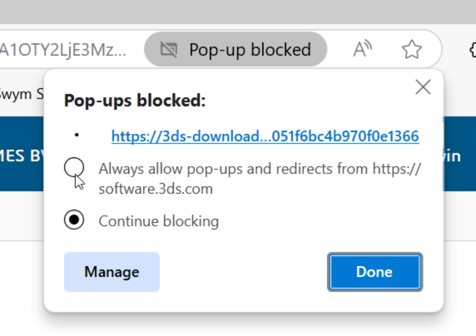
3. Go to the download folder and unzip the zip file.
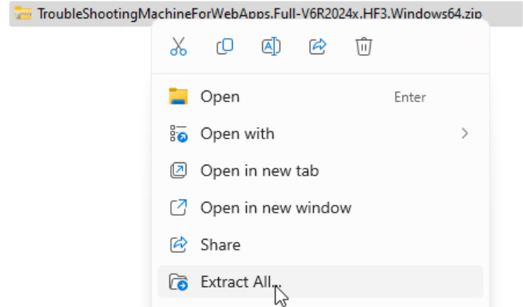
4. Navigate in the extracted folder to the setup.exe.
5. Click trough the installer. Use the default install location unless you’ve installed it prior. In this case you may need to select another location.
How to use the Troubleshooting Machine and create the TSM recording?
1. Open the TroubleShootingMachineForWebApps software.
You can open the desktop shortcut or search TSM in Windows: 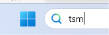
2. Once the software opens and terms have been agreed upon select the ‘mySpace Enviroment’, the correct screen and press ‘open browser’ and ‘confirm’
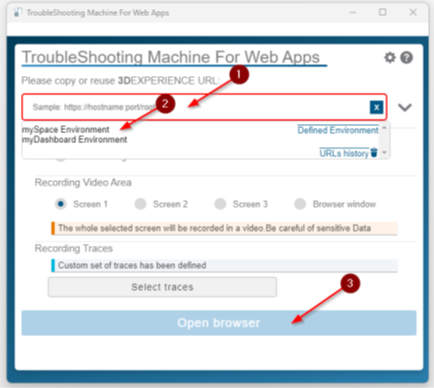
3. Start recording.
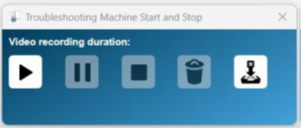
4. In the new browser log in to your 3Dexperience tenant and recreate the issue.
5. Once completed press the ‘close browser’ button. 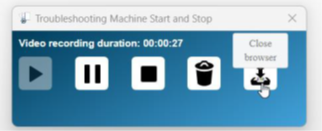
Alternatively you can search for: %USERPROFILE%\AppData\Local\Temp\TSM
inside of Windows file explorer.

You can now share the created zip file with us, please us a file transfer website or upload the file to the customer portal.