![Cadmes Bechtle logo orange-white -transparant.png]](https://support.cadmes.com/hs-fs/hubfs/Cadmes%20Bechtle%20logo%20orange-white%20-transparant.png?height=50&name=Cadmes%20Bechtle%20logo%20orange-white%20-transparant.png)
If you received a link for a Dashboard, make sure you're logged in to your own 3DExperience environment. Then click the link.
You'll now see a pop-up asking if you want to add the Dashboard:
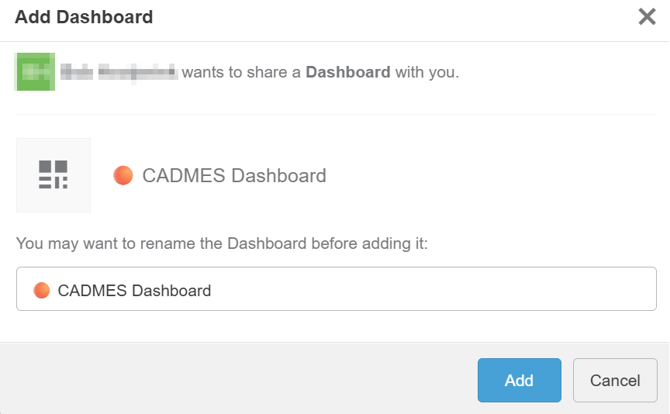
Change the name if necessary and click 'Add'.
The Dashboard has now been added.
Where can I find my Dashboards?
Once logged in, you can find the Dashboards by clicking on the 'hamburger' icon:
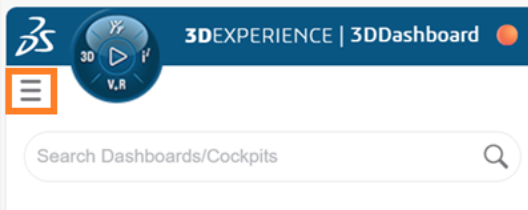
Here you'll find all the Dashboards you have access to.
How do I set the Dashboard as the homepage when starting the 3DEXPERIENCE platform?
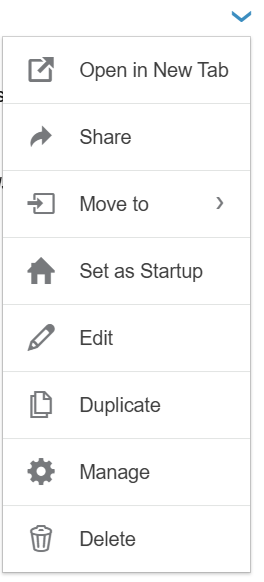
The down arrow next to the Dashboard gives you various options. The 'Set as Startup' option ensures that the Dashboard is displayed when you open your 3DExperience platform.
This menu also allows you to group dashboards using "Move to" (e.g., add to favorites). You can also reshare (with colleagues) and delete it.
The shared dashboard is no longer working properly. What should I do?
If you shared a dashboard via a link, it's best to delete the old dashboard and reopen the link. If you no longer have the link, please contact the person who shared it for a new one.